Installation
- Upload the plugin files to /wp-content/plugins/wpstories-image-optimizer, or install directly through the WordPress Plugins screen.
- Activate the plugin through the Plugins screen in WordPress.
- Go to Settings > Image Optimizer to configure format, quality, and backup options.
Frequently Asked Questions
What image formats can be converted?
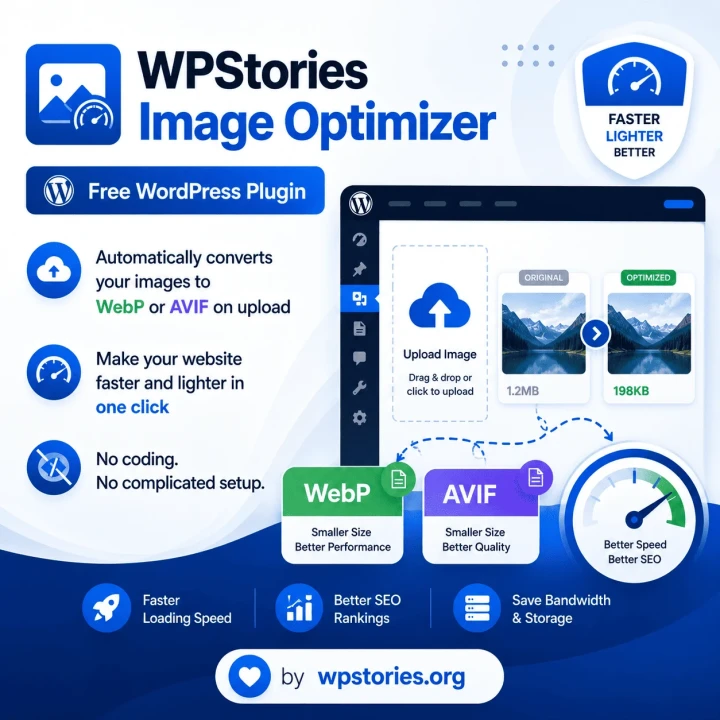
JPG, PNG, GIF, BMP, and TIFF images can all be converted to WebP or AVIF.
Do I need Imagick installed on my server?
No. The plugin works with GD Library as a built-in fallback. However, Imagick is recommended for faster processing and better image quality.
Will this slow down my uploads?
For most images, the conversion adds less than 1 second to the upload time. The process runs in the background during the normal upload flow.
Can I keep the original files?
Yes. There is an option in the settings to keep the original JPG/PNG files alongside the converted WebP/AVIF versions.
Does this affect my SEO?
Yes — positively! Smaller images mean faster page loads, which improves Core Web Vitals scores. Google uses these metrics as a ranking factor, so this plugin directly helps your SEO.
What happens if my server doesn't support WebP or AVIF?
The plugin will display a warning in the admin area. You can switch to a supported format in the settings, or contact your hosting provider to enable the required PHP extension.
Can I bulk optimize my existing images?
Yes. The plugin includes a bulk optimize tool that converts all existing images in your uploads directory. Progress tracking shows how many images have been processed and how much space has been saved.
Is this plugin really free?
Yes, 100% free. There are no premium tiers, no hidden costs, and no upsells. It is released under the GPLv2 license.
Changelog
1.0.0
- Initial release
- WebP and AVIF conversion support
- Imagick and GD Library support
- Bulk optimization tool
- Configurable quality settings
- EXIF metadata stripping option
- Original file backup option
- Thumbnail auto-conversion